Databricks recently released a new CLI tool, Genie Code CLI. For CLI lovers, it's a must-have on their PCs, together with the classic Databricks CLI.
A CSV on my laptop, multiple repositories from different systems, a third-party app that needs to communicate with Genie Code CLI: These are a few of the use cases I wanted to try.
I have to admit, I've always had trouble using the CLI to upload files from my PC or download them from the workspace. That makes file transfer my favorite Genie CLI use case, but I wanted to try a few others too.
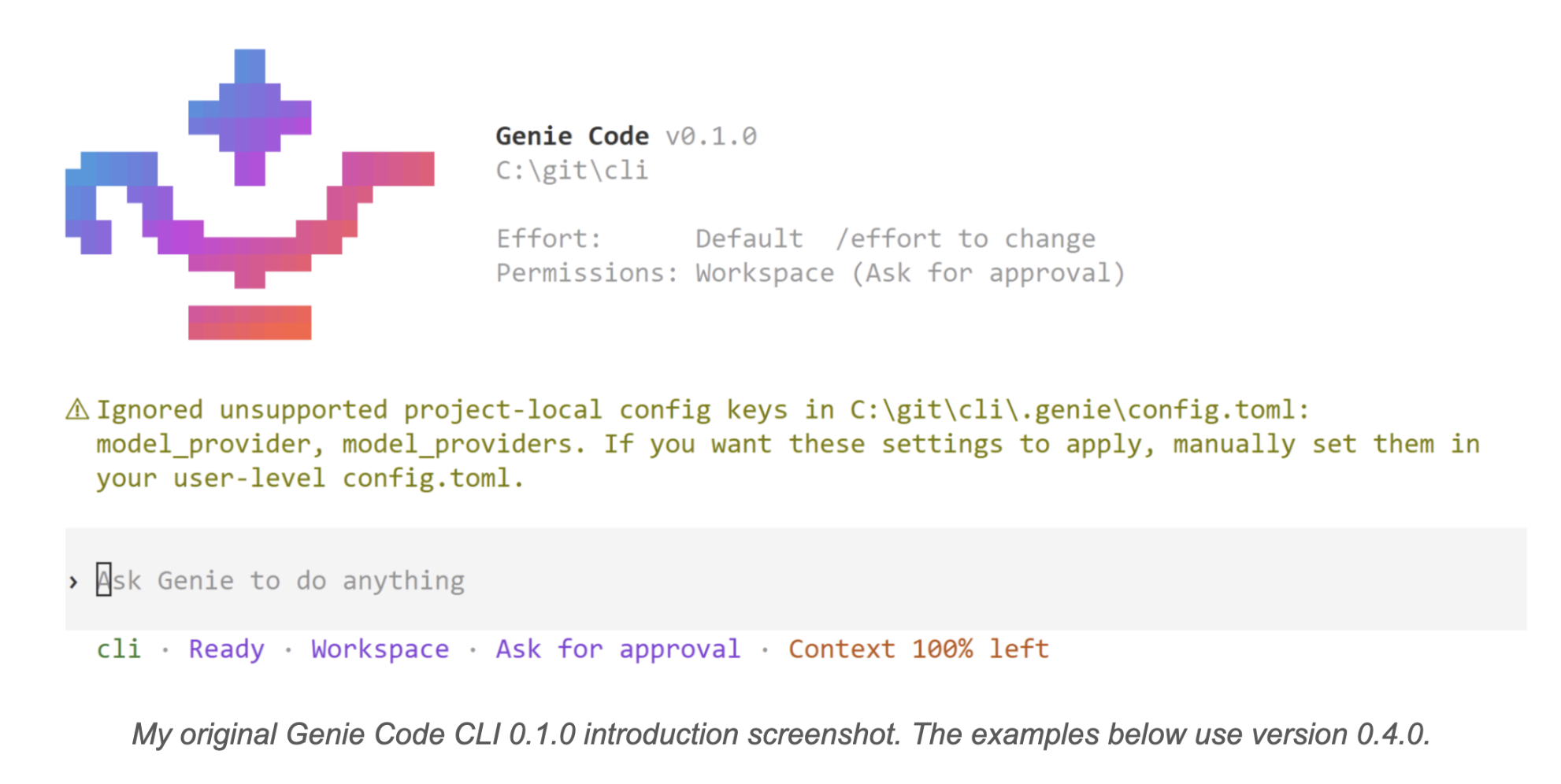
Genie Code CLI uses Databricks-provided models. Usage is tracked through Unity Gateway and counts toward the same Genie budget. See billing and budgets for pricing.
As with the Databricks CLI, you can download Genie Code CLI and check for new versions on its GitHub releases page: https://github.com/databricks/genie-code-cli/releases
1. Upload files and ingest.
This is probably the first thing I would try. Someone sends a sales export, and I want to add it to an existing table. In this example, the table already contained two orders worth EUR 500. The CSV on my laptop contained three more orders, also worth EUR 500.
I used this small file.csv for the upload:
order_id,order_date,region,product,gross_amount_eur

KIT-INGEST-001,2026-11-16,North,Analytics,100.00

KIT-INGEST-002,2026-11-16,South,Storage,150.00

KIT-INGEST-003,2026-11-16,West,Support,250.00
Start Genie in the folder that contains file.csv. In the request below, main.sales.orders and /Volumes/main/sales/uploads/ are example destinations.
Read file.csv and check its columns against main.sales.orders.

Stop if any incoming order_id already exists; otherwise, upload the file

to /Volumes/main/sales/uploads/file.csv and append its rows to the table.

Preserve existing rows and use the table's data types.

Show the upload path, INSERT statement, final row count, and total revenue.
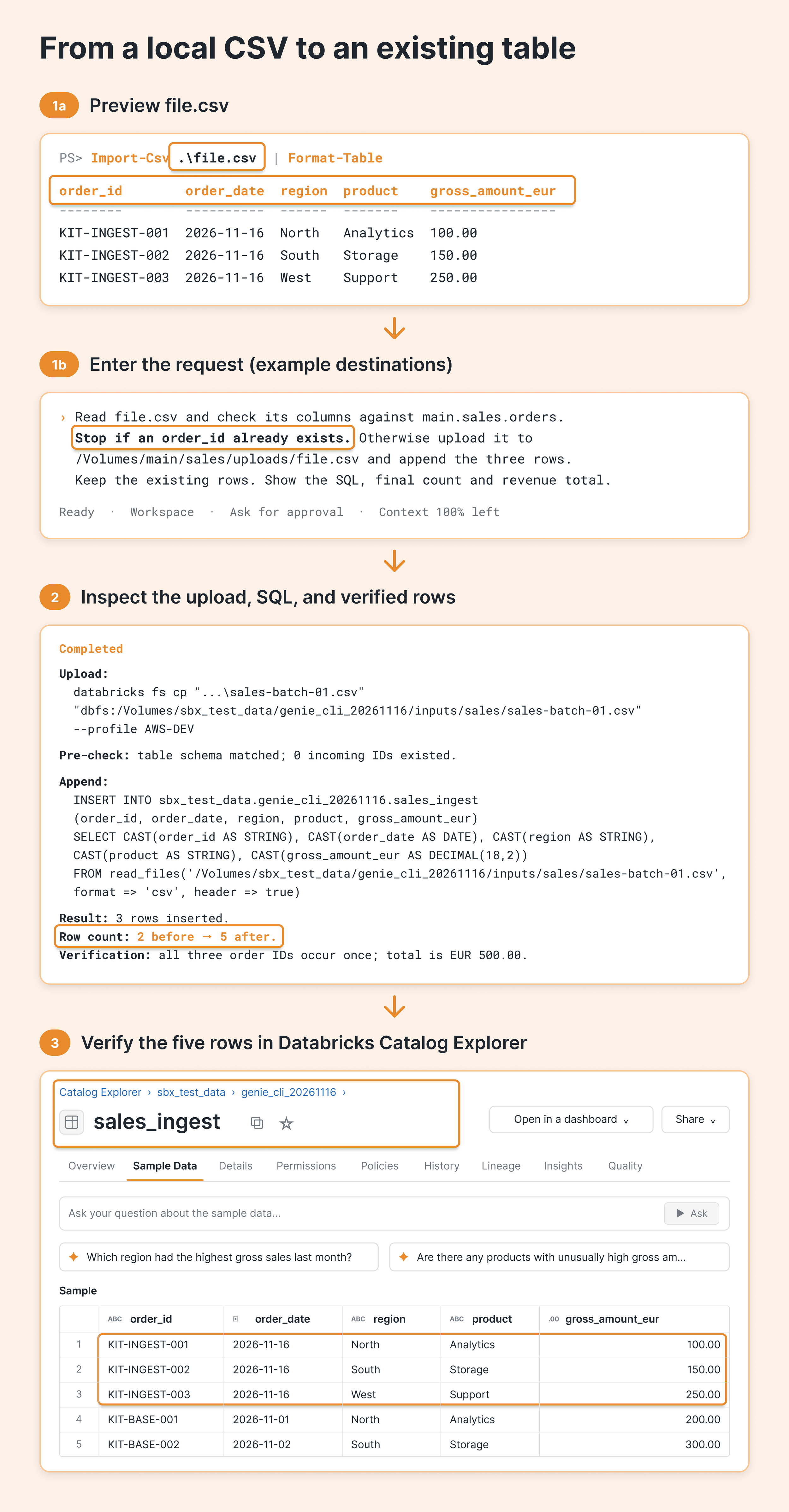
Genie checked the file and table, uploaded the CSV, and appended the three rows. The table went from 2 to 5 orders and from EUR 500 to EUR 1,000.
For me, the useful part is asking for the whole task in one place: inspect the file, upload it, append it, and check the result.
2. Use Genie as a bridge between repositories.
Migrations are a never-ending topic. Often, the application already exists, and I want to keep its interface. The work is in changing the data access, authentication, and deployment configuration.
For this example, I started with a small Customer Desk app. It read a CSV and let me search customers or filter them by region. I asked Genie to prepare a Databricks Apps version in a second folder, with the data coming from the customers table in Unity Catalog.
With the repository from one system in one folder and the repository from the other system in another, my laptop is the bridge between them, so I can use Genie CLI to work on the migration.
Inspect source-app and prepare a Databricks App in databricks-app.
Keep the source, frontend, customer search, and region filter unchanged.
Use main.sales.customers with customer_id, name, region, segment,
revenue_eur, and tickets. Keep a local CSV preview mode.
Add FastAPI, app.yaml, dependencies, and parameterized SQL queries.
Use the app's identity and a configured SQL warehouse, without tokens.
Test all customers, filters, search, and empty results; show the results.
Show changes and deployment steps/permissions; stop before deploying.
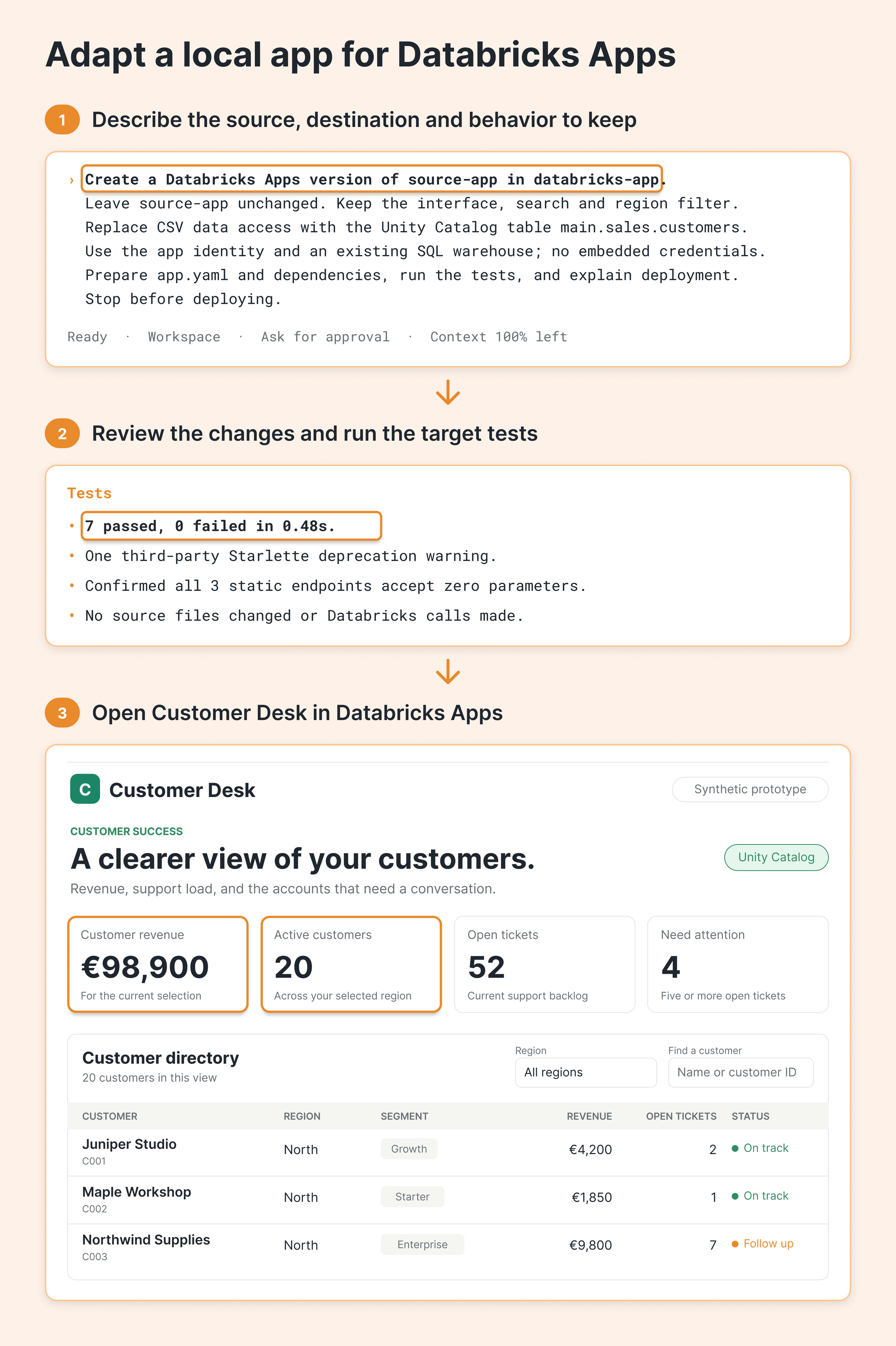
The new folder had a FastAPI backend, the SQL queries, app.yaml, dependencies, and tests. I checked the source folder afterward: all five files were unchanged. The three frontend assets in the new app also matched the originals byte for byte.
3. Let another agent investigate a suspicious total.
For the next test, I used ten orders and four refund events. Two refunds belonged to the same order, so direct join therefore repeated that order's revenue. I wanted to see whether Codex could ask Genie to find the problem in Databricks and use the answer while working on a sales app.
Codex can run Genie as a local command while working on the application repository. Genie uses its configured Databricks connection; replace the example table names with the two tables you want it to inspect.
$task = @'
Use Genie's connected workspace and an existing SQL warehouse.
Inspect main.sales.orders and main.sales.refunds with read-only SQL.
Orders: order_id, gross_amount_eur. Refunds: refund_id, order_id,
refund_amount_eur. Check counts, duplicate IDs, and orphan refunds.
Compare a raw left join with refunds summed per order before joining.
Show both row counts and gross totals, plus correct refunds and net.
Return JSON with the metrics, SQL you ran, and a short explanation.
Do not modify the tables or create resources.
'@
genie exec --approve-for-me $task
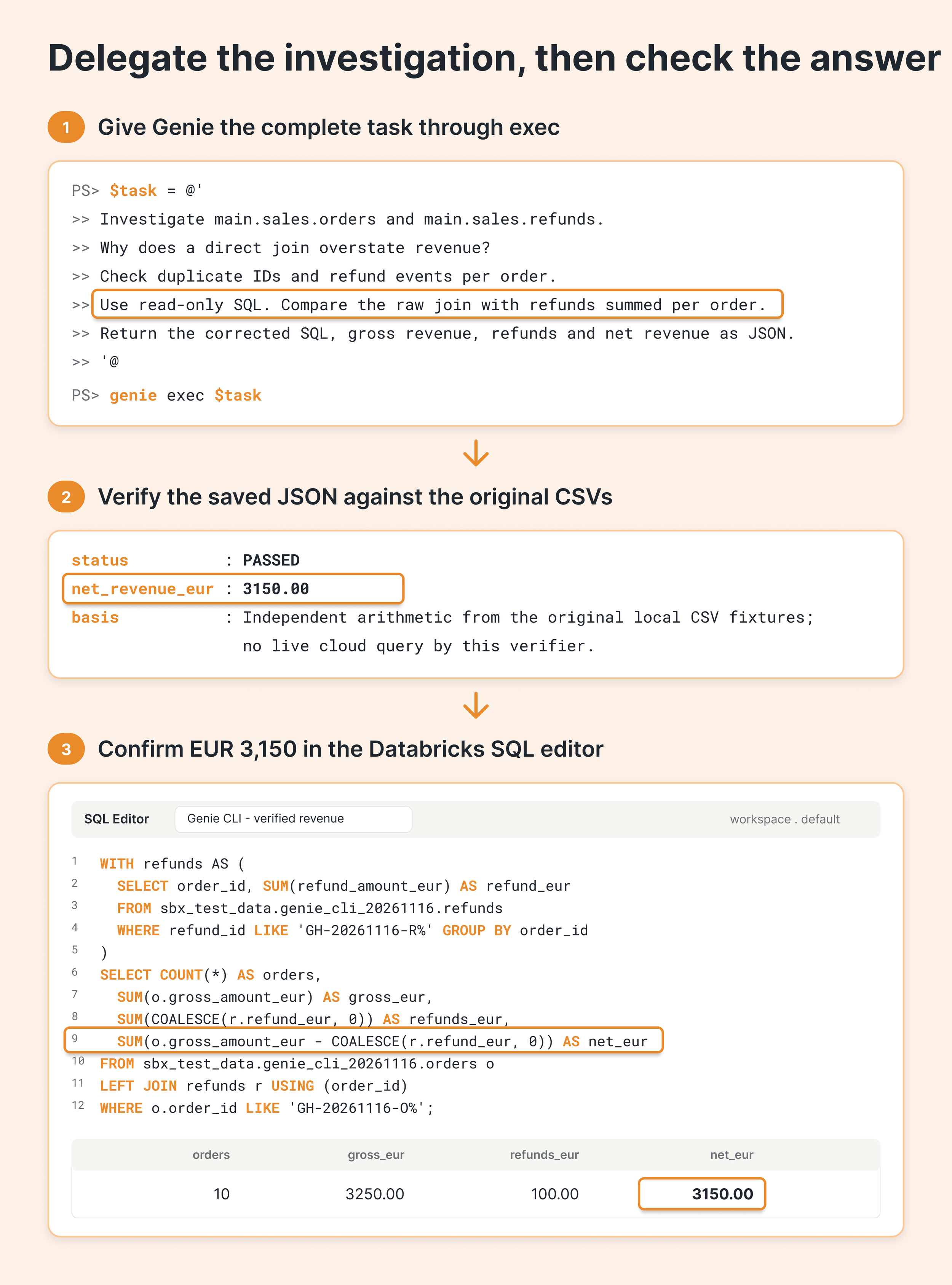
Genie queried the two tables and found the problem. Codex then calculated the totals independently from the source CSVs, and the check passed. Genie returned the metrics and SQL as JSON, which Codex could read before continuing the application task.
I originally planned to show Genie as an MCP server, but version 0.3.0 removed genie mcp-server. The example above uses genie exec instead. There is also an experimental exec-server with WebSocket and stdio transports.
4. Integrate Genie with your own desktop application.
I also tried exec-server, which is still experimental. It gives a desktop app a way to send commands to Genie and collect the results. The app can use any language that can start a process and read and write its input and output.
genie exec-server --listen stdio
Your app starts Genie in the background. With stdio, the two programs exchange structured messages through the process's input and output, so no network port needs to be opened. You could put a "Run tests" button in the app: it sends the test command and shows the output as it arrives, followed by the exit code.
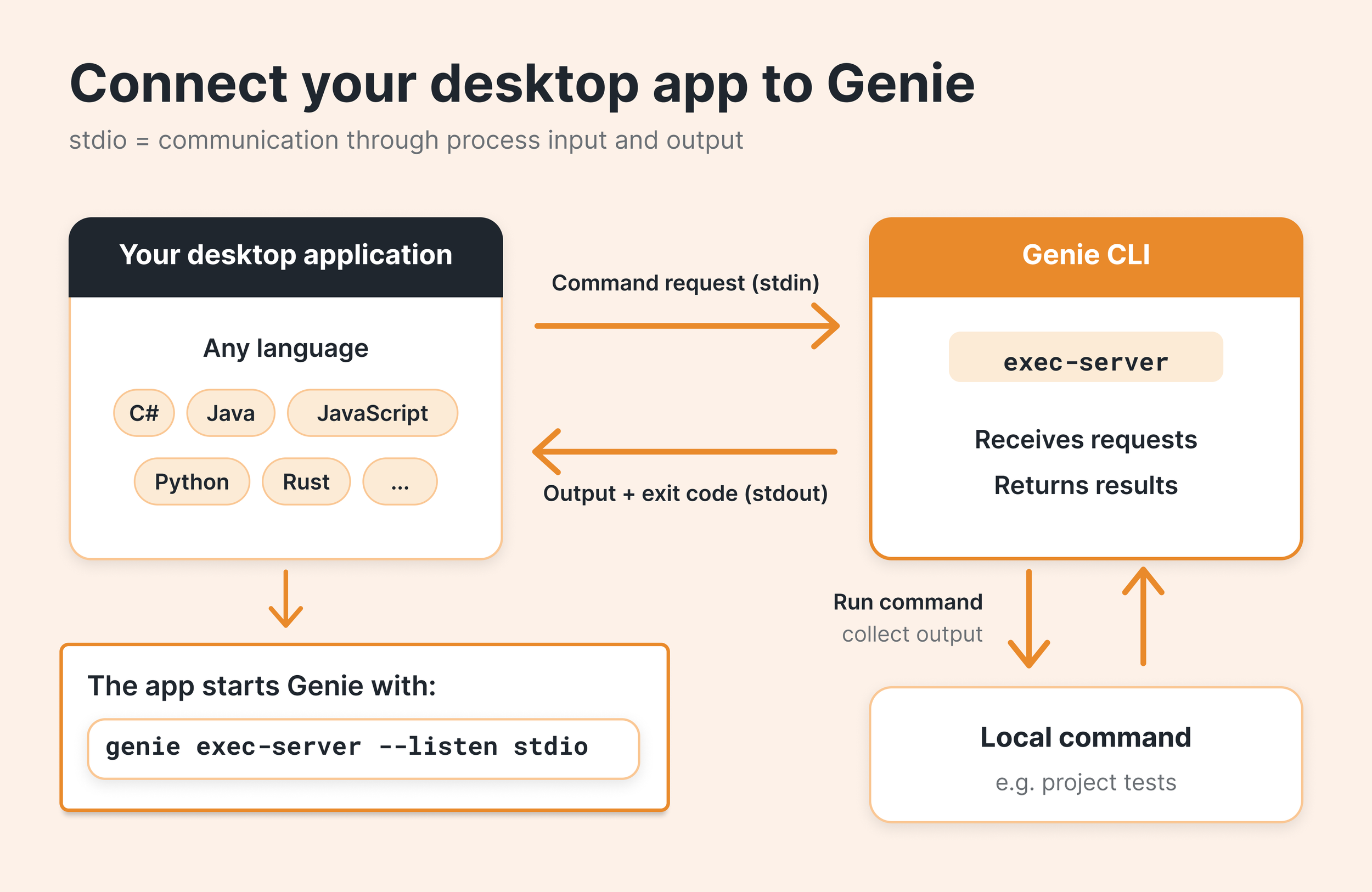
There is a bit of integration work here: your app has to speak the exec-server protocol and supply the command to run. If you want to send Genie a request in plain English, use Genie exec.
5. Check a change before committing.
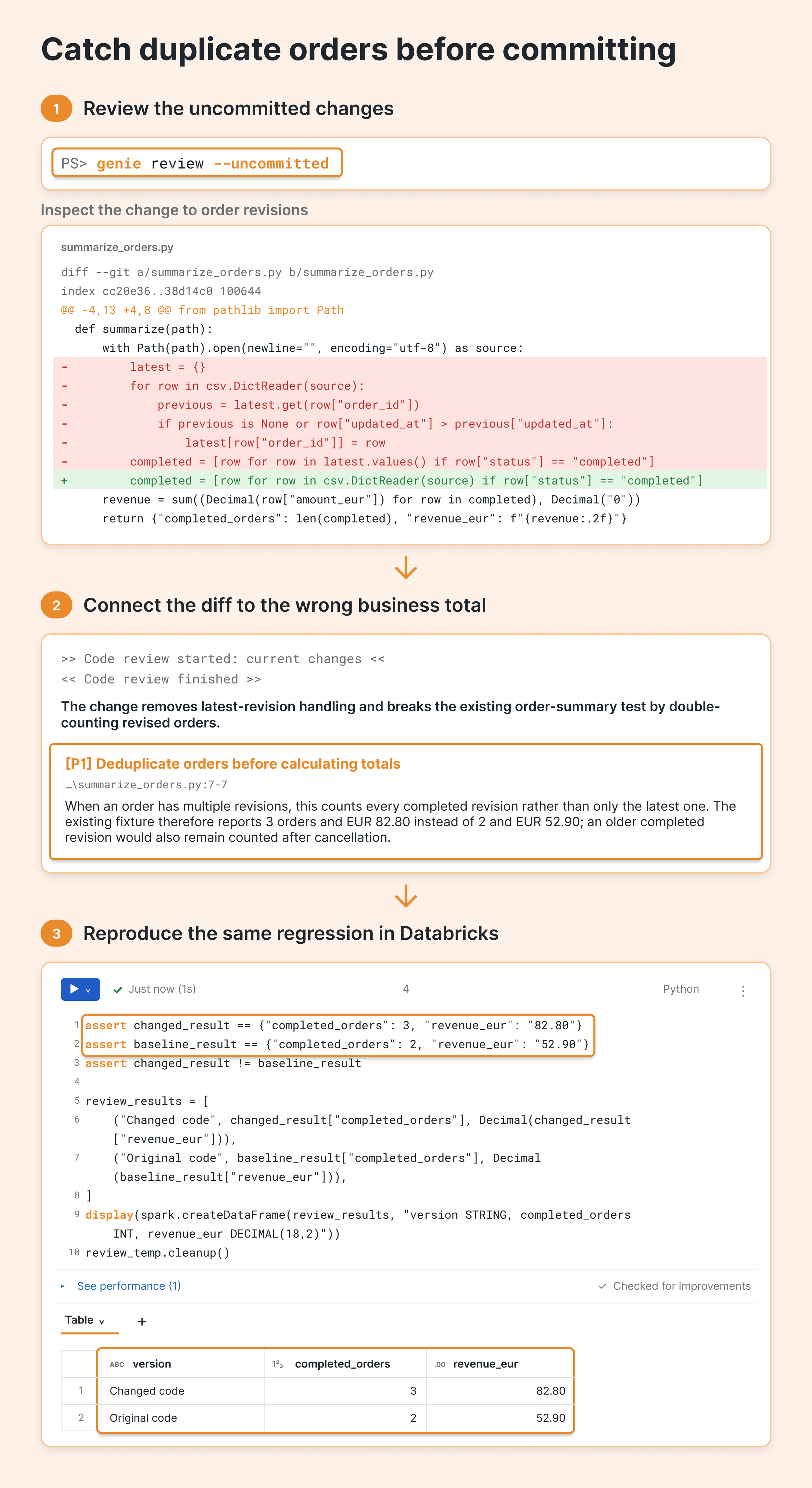
genie review --uncommitted is a really useful check before you commit anything. Actually, it inspected my local code and found that my change would break the before order sum logic.
6. Debug a failed job from screenshots.
Someone sends you a few screenshots and a message: "The job is not working." One image shows the failed run, and another shows the traceback.
Save the images in the local project folder. Give Genie both images and describe what you want it to do:
genie --image failed-run.jpg traceback.jpg -- `
  "These screenshots show a failed Databricks job.
   Inspect the code and CSV. Fix the cause, keep the CSV unchanged,
   and run the existing tests."
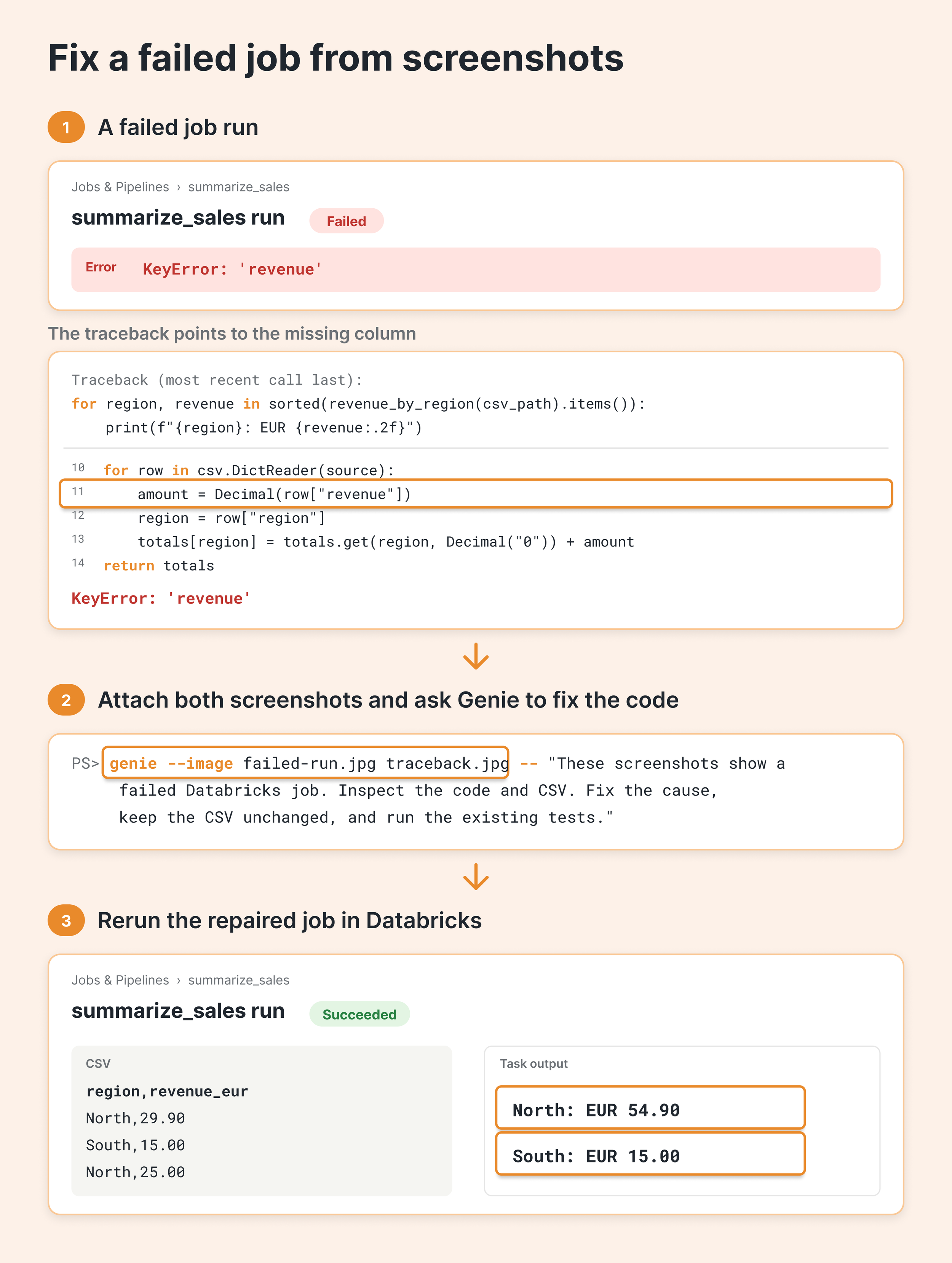
Genie used both screenshots, inspected the local files, and changed the field access from revenue to revenue_eur. The existing test passed, and the CSV stayed unchanged.
What’s next?
Besides constant improvements to models, quality, and so on, more integrations are coming:
Omnigent
Unity Gateway
Skills
TL;DR
Genie Code CLI can take a whole task in a single prompt. My favorite use case is uploading a local CSV and appending it to a table, but I also used it to adapt an app for Databricks Apps, investigate a suspicious revenue total for Codex, review uncommitted changes, and debug a failed job from screenshots. The experimental exec-server shows how a desktop app could send commands to Genie and receive the results.