Excel never dies (and neither does SharePoint)
The rumors of Excel's demise have been greatly exaggerated. While data engineers have long dreamed of a world where CSV reigns supreme, the reality is that Excel files remain the lifeblood of business operations. And Databricks is meeting organizations where they are.
Big news: The native Excel import feature
Databricks has introduced native Excel file import capabilities (and yes, this includes write operations). For teams drowning in spreadsheets from finance, operations, and analytics departments, this is a game-changer.
Even better? It integrates with the streaming autoloader (currently in beta), enabling true incremental processing of Excel files as they land in your data lake.
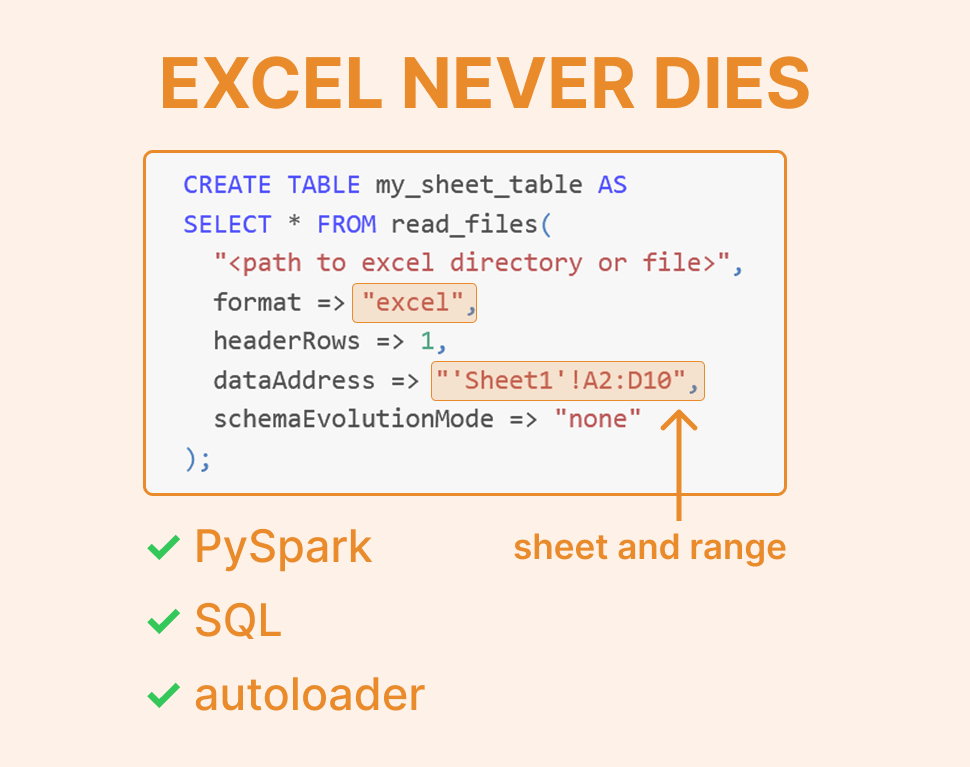
Real-world scenarios, simplified
Let's explore how this works in practice with common patterns you'll encounter every day.
The simple case: single sheet tables
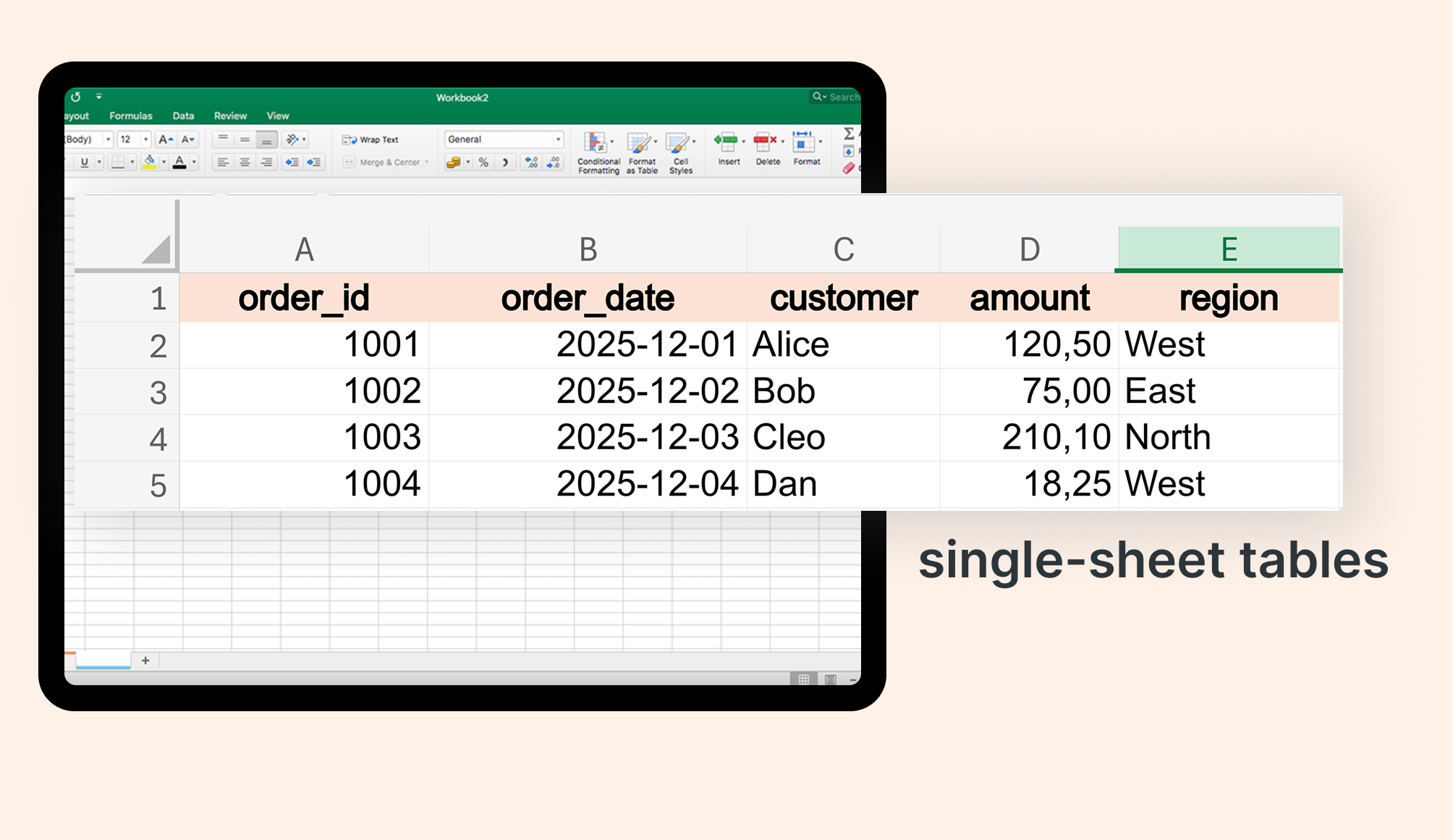
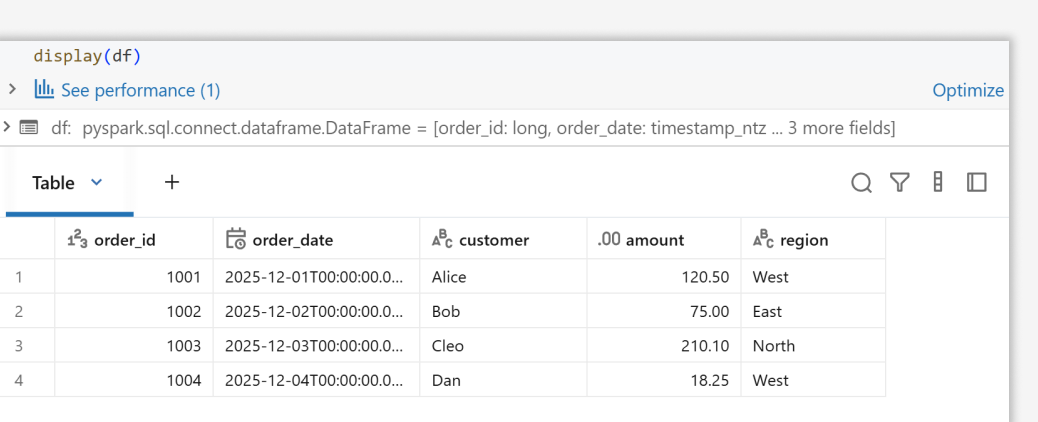
Let’s take a look at some common loading patterns. I created a volume for Excel files and will use it to import them. Most Excel files you'll encounter follow a straightforward pattern: a single sheet with a table in the top-left corner. Here's how elegantly Databricks handles it:
path = f"{VOLUME}/excel/sales_single_sheet.xlsx"

df = (spark.read
      .option("headerRows", 1)     # use first row as column names
      .excel(path))

display(df)
Spark automatically detects data types and uses the first row as column headers. No manual schema definition required.

Multi-sheet intelligence: programmatic sheet discovery
When you're dealing with complex workbooks containing multiple sheets, Databricks lets you programmatically list and select sheets:
path = f"{VOLUME}/excel/inventory_multi_sheet.xlsx"

sheets = (spark.read
          .format("excel")
          .option("operation", "listSheets")
          .load(path))

display(sheets)
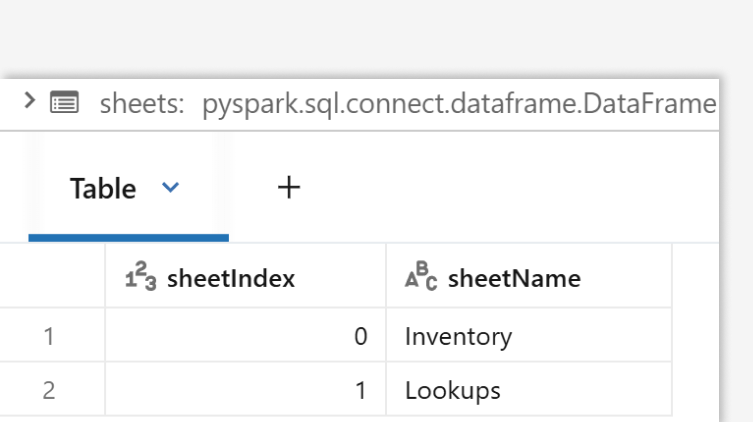
This is invaluable for automated pipelines that need to process different sheets based on business logic or naming conventions.
Precision targeting: range selection
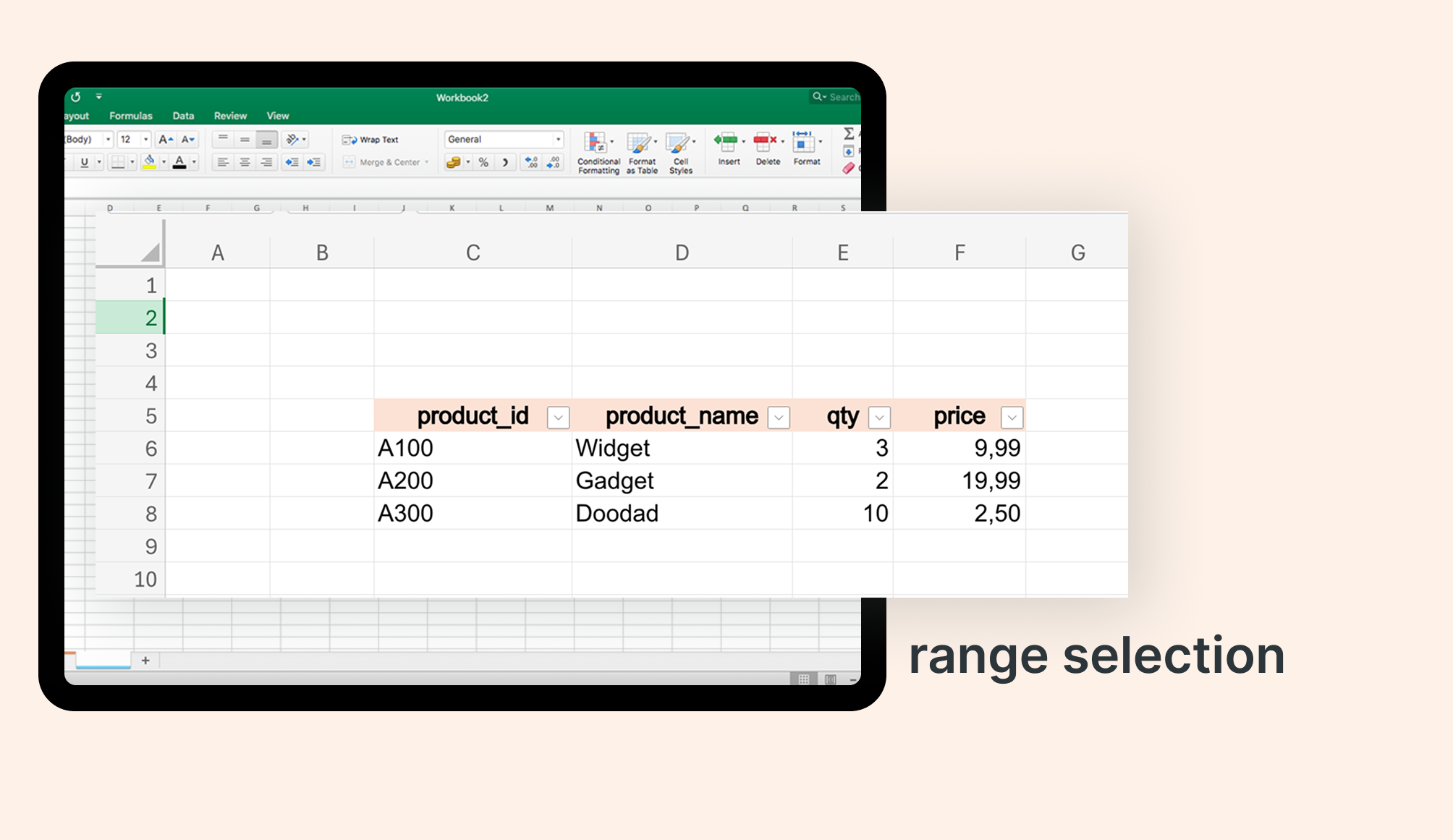
Finance teams love their floating tables and specific cell ranges. Databricks handles this with the dataAddress option:
path = f"{VOLUME}/excel/range_starts_my_table.xlsx"

df_range = (spark.read
            .format("excel")
            .option("headerRows", 1)
            .option("dataAddress", "MySheet!C5:F8")
            .load(path))

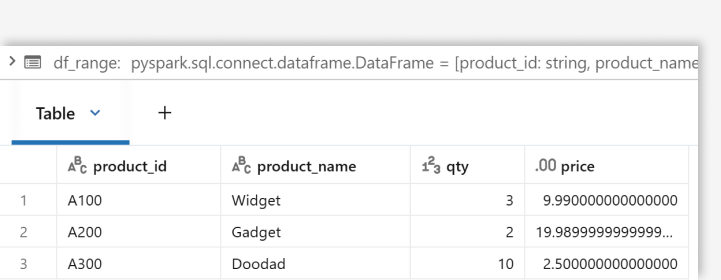
display(df_range)
Target exactly the data you need, whether it's a named range or a specific cell area like MySheet!C5:F8.
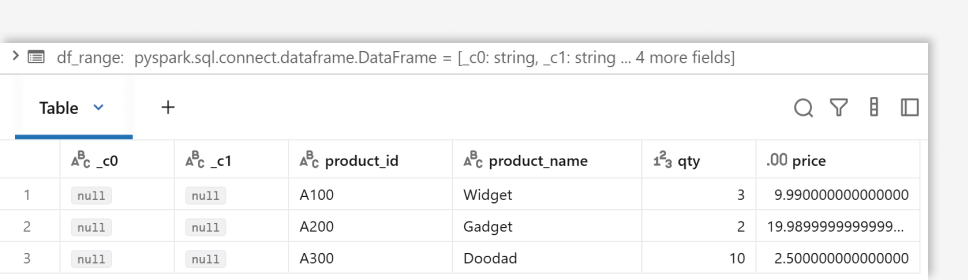
Pro tip: If your table is floating but you don't want to hardcode the range, you can omit the range specification. Spark will skip empty rows automatically. Just use SELECT * EXCEPT() to drop any unwanted empty columns.
SQL native support
Prefer SQL? The functionality extends to SQL syntax with intuitive parameters:
SELECT * FROM read_files(
  "/Volumes/hub/default/files/excel/range_starts_my_table.xlsx",
  format => 'excel',
  schemaEvolutionMode => 'none',
  recordName => 'MySheet',
  headerRows => 1
);
Streaming Excel: autoloader integration
Here's where it gets truly powerful. How many times have you dealt with daily or weekly Excel exports landing in cloud storage? The new Autoloader integration enables incremental processing:
df_stream = (spark.readStream
  .format("cloudFiles")
  .option("cloudFiles.format", "excel")
  .option("headerRows", 1)
  .option("cloudFiles.inferColumnTypes", True)
  .option("cloudFiles.schemaLocation", schema_dir)
  .option("cloudFiles.schemaEvolutionMode", "none")  # required for Excel streaming
  .load(path)
)
Autoloader tracks which files have been processed and only imports new arrivals since the last checkpoint.
The SharePoint connection: closing the loop
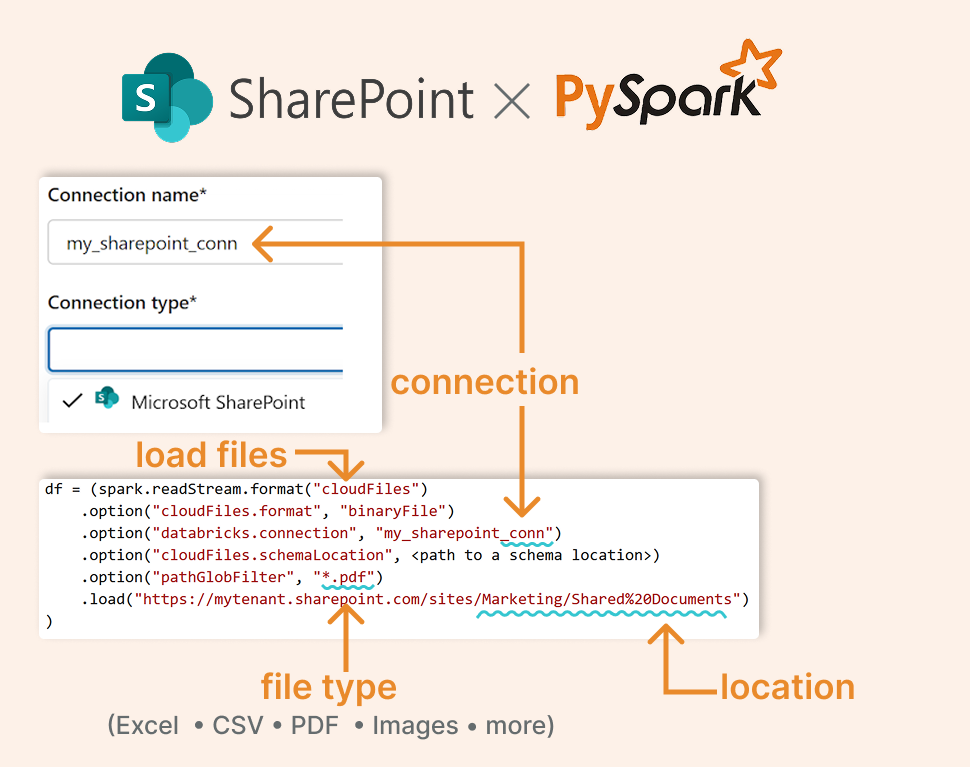
And here's the cherry on top: direct SharePoint integration. If your organization stores Excel files in SharePoint, you can now load them directly:
df_from_sharepoint = (spark.readStream
		    .format("cloudFiles")
			  .option("cloudFiles.format", "excel")
        .option("databricks.connection", "my_sharepoint_conn")
        .option("pathGlobFilter", "*.xlsx")
        .option("headerRows", 1)
        .option("dataAddress", "Sheet1")
        .load("https://mytenant.sharepoint.com/sites/Finance/Shared%20Documents/Monthly/Report-Oct.xlsx"))
Define a SharePoint connection in Unity Catalog, and all those departmental Excel files will become accessible within your lakehouse architecture. The autoloader even works with SharePoint sources, enabling truly automated pipelines.
Data teams have spent years asking business users to abandon Excel, but Excel isn't going anywhere. Instead of fighting it, Databricks is enabling you to embrace it.
All the code examples and sample Excel files are available in this GitHub repository: https://github.com/hubert-dudek/medium/tree/main/news/202550